

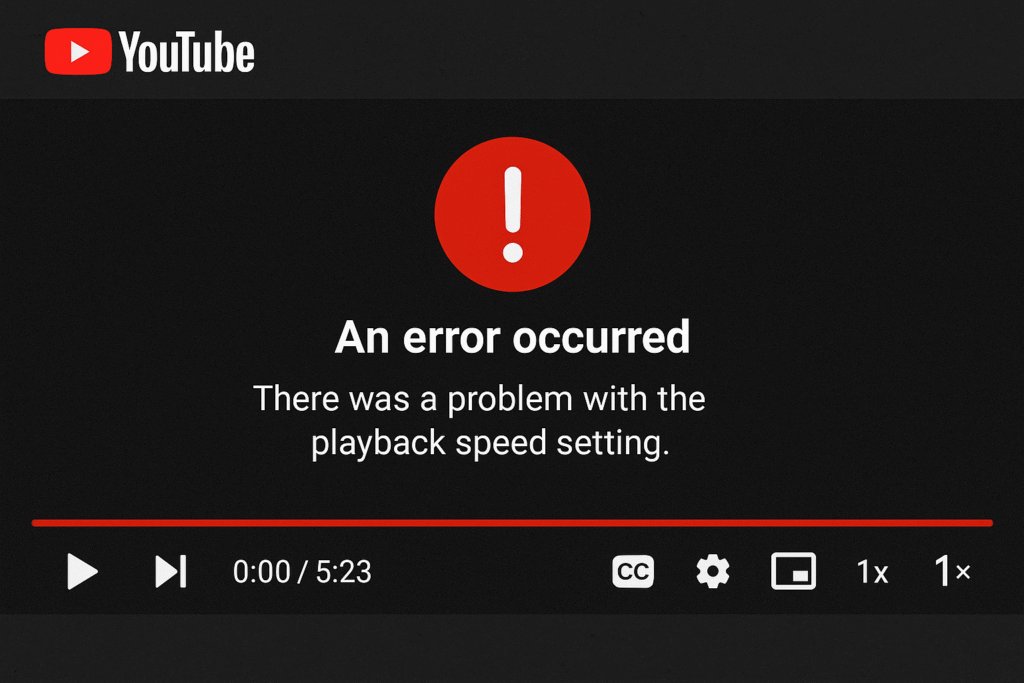
On August 5, 2025, a widespread bug hit the YouTube Android app, breaking the playback speed control feature.
- Users reported that even after selecting speeds like 1.5× or 2×, videos stayed stuck at 1× speed.
- The glitch affected both the stable (v20.28.39) and beta (v20.29.39) versions of the Android app.
- Interestingly, desktop browsers, iOS devices, and the YouTube Music app worked fine.
- The bug appeared to be linked to a server‑side rollout, meaning some users saw it before others.
YouTube officially acknowledged the issue via its Community Forum and @TeamYouTube on X (Twitter), stating:
“We’re aware some of you are experiencing issues adjusting playback speed while watching videos on Android devices. Our teams are actively investigating this issue!”
🎯 Official Response & Resolution
Confirmation by YouTube
- YouTube (via its official Community Forum posts) acknowledged: “We’re aware some of you are experiencing issues adjusting playback speed while watching videos on Android devices. Our teams are actively investigating this issue!” Business Insider+6Android Authority+69to5Google+6.
- The company also tweeted similar statements via @TeamYouTube, confirming a fix was underway
Fix Released Quickly
- Just a day later, on August 6, 2025, YouTube announced that the playback speed issue had been fixed. Users were advised to force‑stop and relaunch the Android app to restore functionality
✅ What You Should Do
If you encountered this issue, here’s a step‑by‑step checklist:
- Update the YouTube app via the Google Play Store to the latest version.
- Force‑stop the app completely, then relaunch it—not just background‑closing, but full restart.
- Clear cache and data for YouTube from Settings → Apps → YouTube → Storage & cache.
- Reboot your device, especially if the app still misbehaves.
- Uninstall and reinstall YouTube if the glitch persists.
If none of those work, YouTube recommends visiting their Community Forum or using the in‑app Help & Feedback to report the problem directly—even after the patch has been released
🌍 Why It Mattered
- Playback speed is no minor feature—it’s central to how many users manage content.
- Musicians slow tutorials for practice.
- Podcast listeners speed through longer episodes.
- Reviewers or researchers fast‑forward to key points.
- Losing this temporarily (especially on mobile) disrupted routines—and highlighted how indispensable the feature had become
If YouTube’s playback speed control isn’t working for you, it could be due to a browser, device, or account setting. Here are the most common fixes you can try if such issues arise.


Check the Basic Things First
- Make sure you are signed in to YouTube.
- Verify that you’re not watching a YouTube Shorts or live stream — playback speed change doesn’t work for those.
- Try a different video to see if it’s video-specific.
2️⃣ Change Playback Speed Correctly
- On desktop:
- Click the gear icon ⚙ in the video player.
- Select Playback speed.
- Choose your speed (0.25x to 2x or Custom).
- On mobile:
- Tap the three dots menu ⋮ or settings ⚙.
- Select Playback speed.
- Choose your speed.
3️⃣ If the Option Appears but Doesn’t Work
- Refresh the page or restart the YouTube app.
- Clear your browser cache and cookies.
- Try Incognito/Private mode to rule out extension conflicts.
- Disable extensions like video downloaders, ad blockers, or speed controllers, as they can override YouTube’s player.
4️⃣ Update or Switch Your Browser/App
- Update Chrome, Firefox, Edge, or Safari to the latest version.
- If you’re using YouTube in a browser, try another browser to test.
- On mobile, update the YouTube app from the App Store or Play Store.
5️⃣ Check Internet & System Issues
- If your internet is very slow, YouTube may force a default playback speed.
- Try lowering video quality to see if speed control then works.
6️⃣ Advanced Fixes
- Disable hardware acceleration in Chrome/Edge settings.
- Reset browser settings to default.
- On mobile, try uninstalling and reinstalling the YouTube app.
Final Word
The YouTube playback speed bug in early August 2025 was short‑lived but frustrating, especially for Android users who rely on speed adjustments for tutorials, podcasts, and long videos. While YouTube’s quick fix solved the problem for most, some may still need to manually clear cache, update, or reinstall to get it working again
If you face this issue again, check @TeamYouTube on social media or the official YouTube Help Community for real‑time updates.

Leave a Comment